Deployment of Next.js app.
We assume that, you already know how to start a Next.js. Kindly recommend, if you don’t, go back.
The time is come to know how to deploy a Next.js app. Next.js is developed by Vercel. They provied a platform pn where we can Preview, and Deploy our app. It is very simple, the only requirement is to have a GitHub account on where we push and store our code.
Let’s put the code on GitHub
Assuming that you already created you account, if not go [create(https://github.com/signup)] one.
The basics command to push our new Next.js app. Change the directory by typing cd <your-next-folder-project>.
Create a project on GitHub to store our code.
Go to your account click on + or type in your browser https://github.com/new to create a new repository and fill these Two field Repository name and Description (optional)
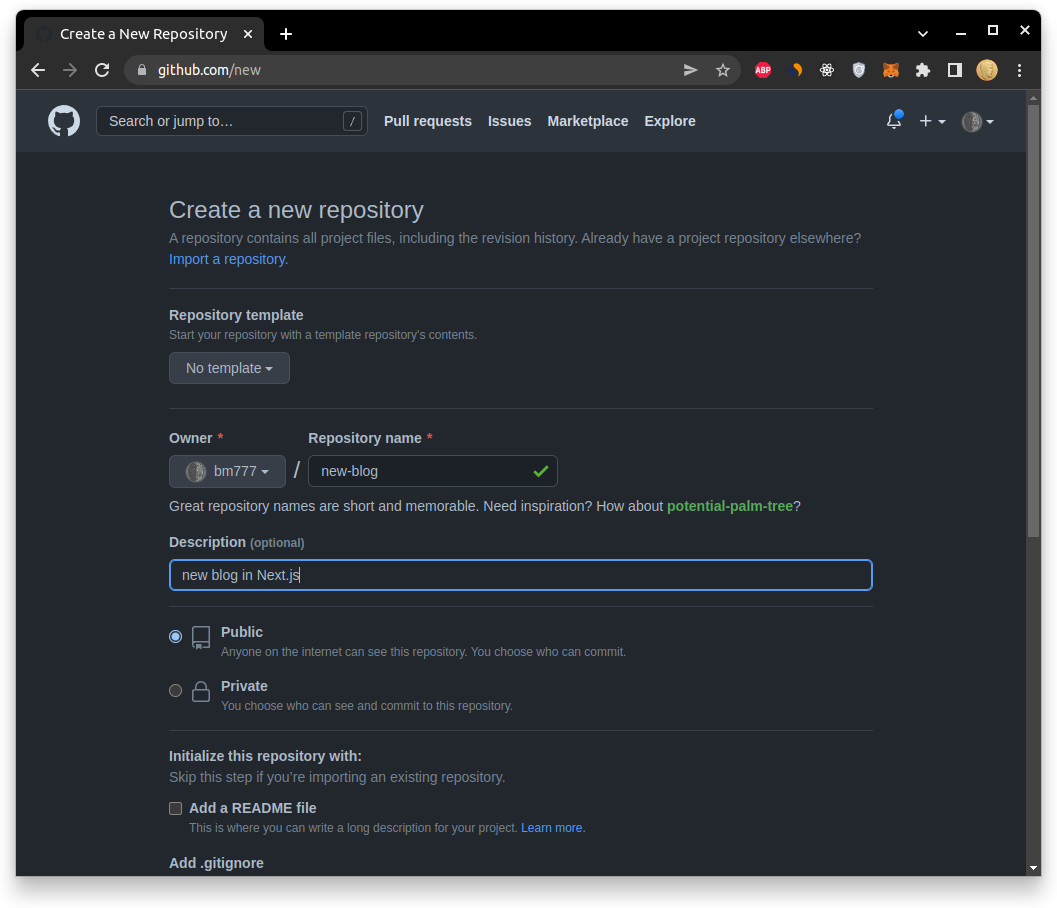
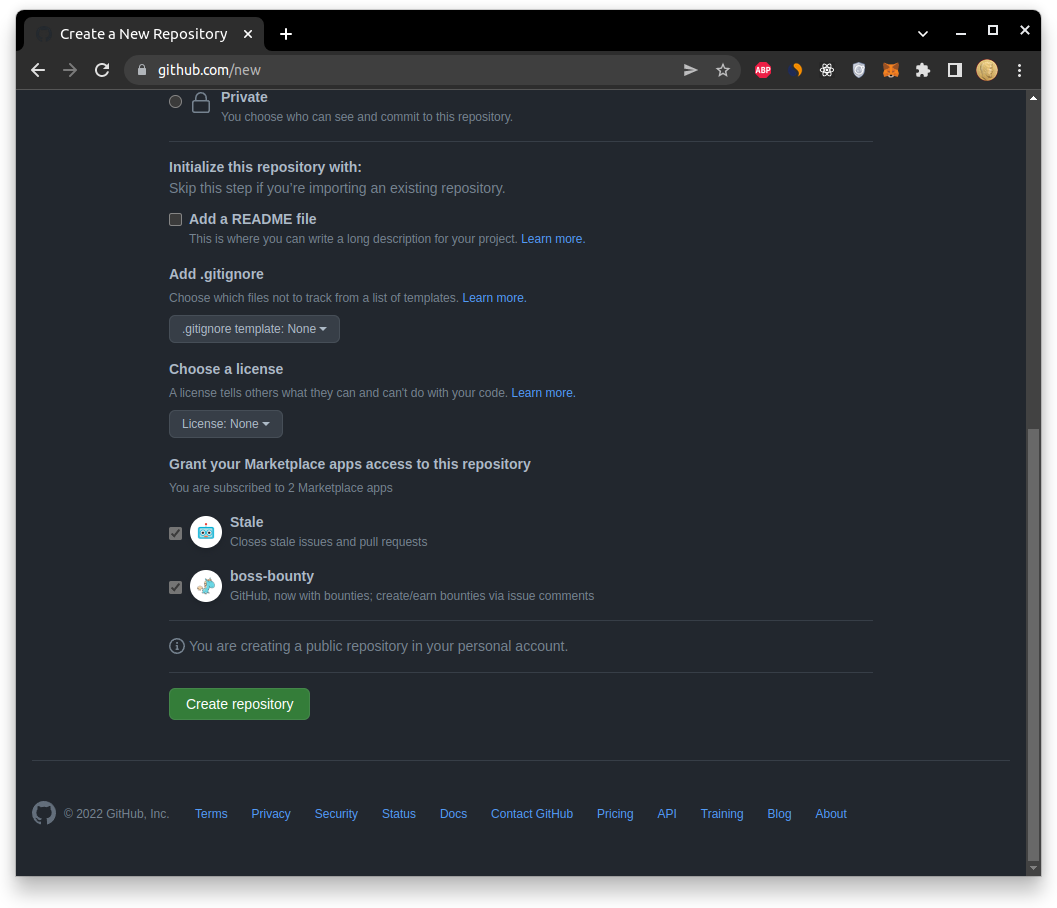
Then click the green button Create repository
After that, you will be redirected there.
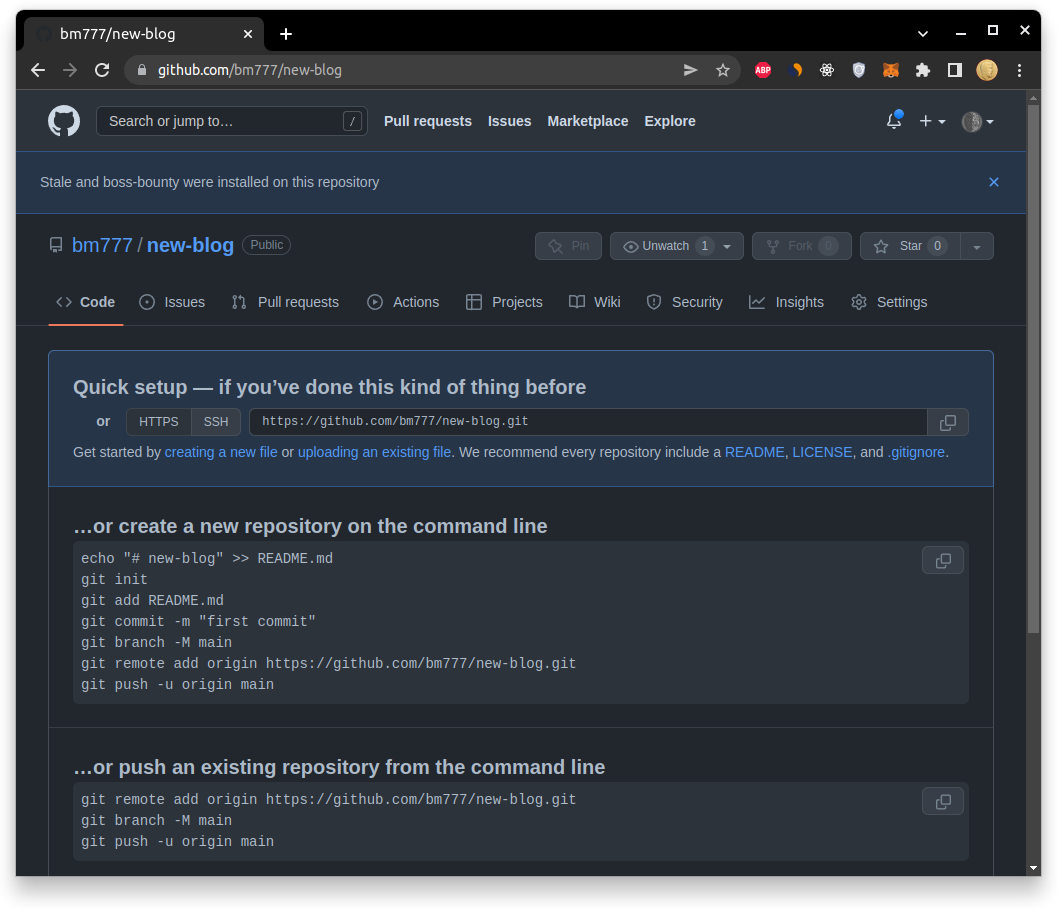
You shut have to follow these instruction that are seeing. (replace <username> and <repository-name> by yours)
git init
git add .
git commit -m "Initial commit"
git remote add origin http://github.com/<username>/<repository-name>
git push origin master
Result
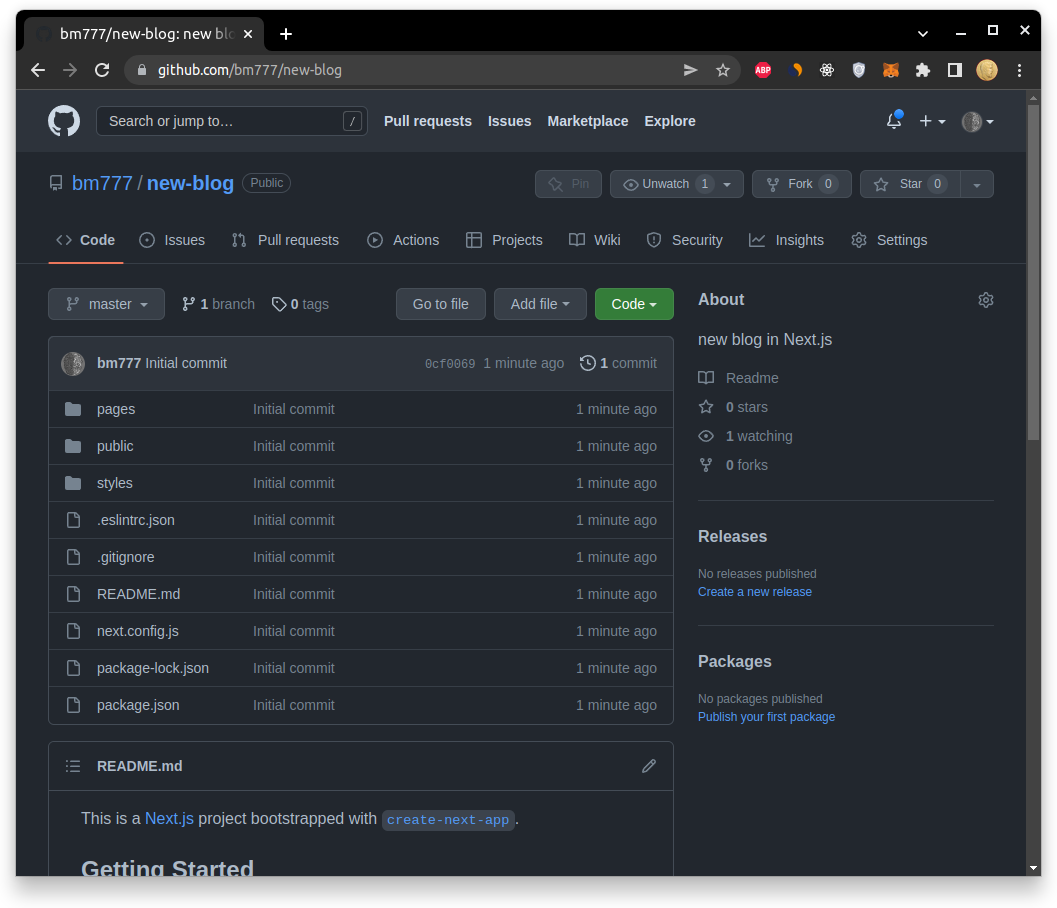
Code pushed to Github
Now see your code stored online. So when yuo make some change, just commit, and push it on github. To do that just follow these command
git add .
git commit -m "make some changes on x files"
git push origin master
Create project on Vercel
If you don’t have an account on Vercel, go and create a Vercel account.
And Create a project by clicking on New Project
Import code form GitHub to Vercel
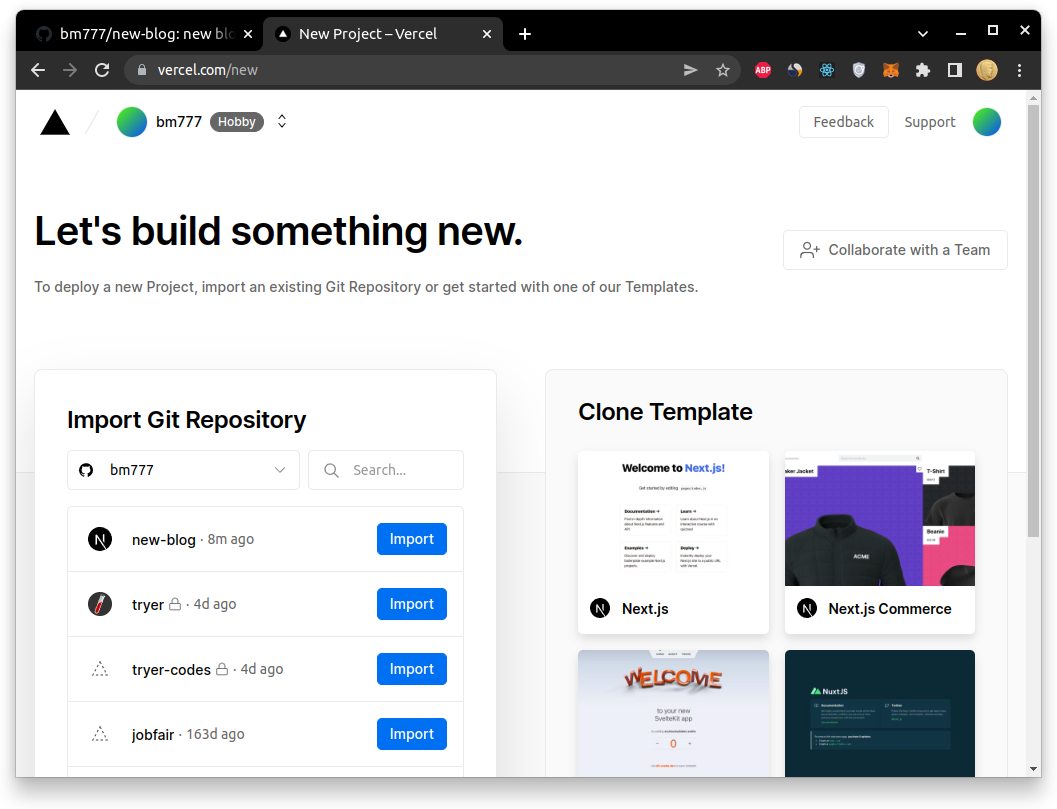
Once you linked your github account to your vercel account, you will be able to se your github projects to the section Import Git Repository.
Just click on the blue button Import, in our case it is new-blog.
Deploy it!
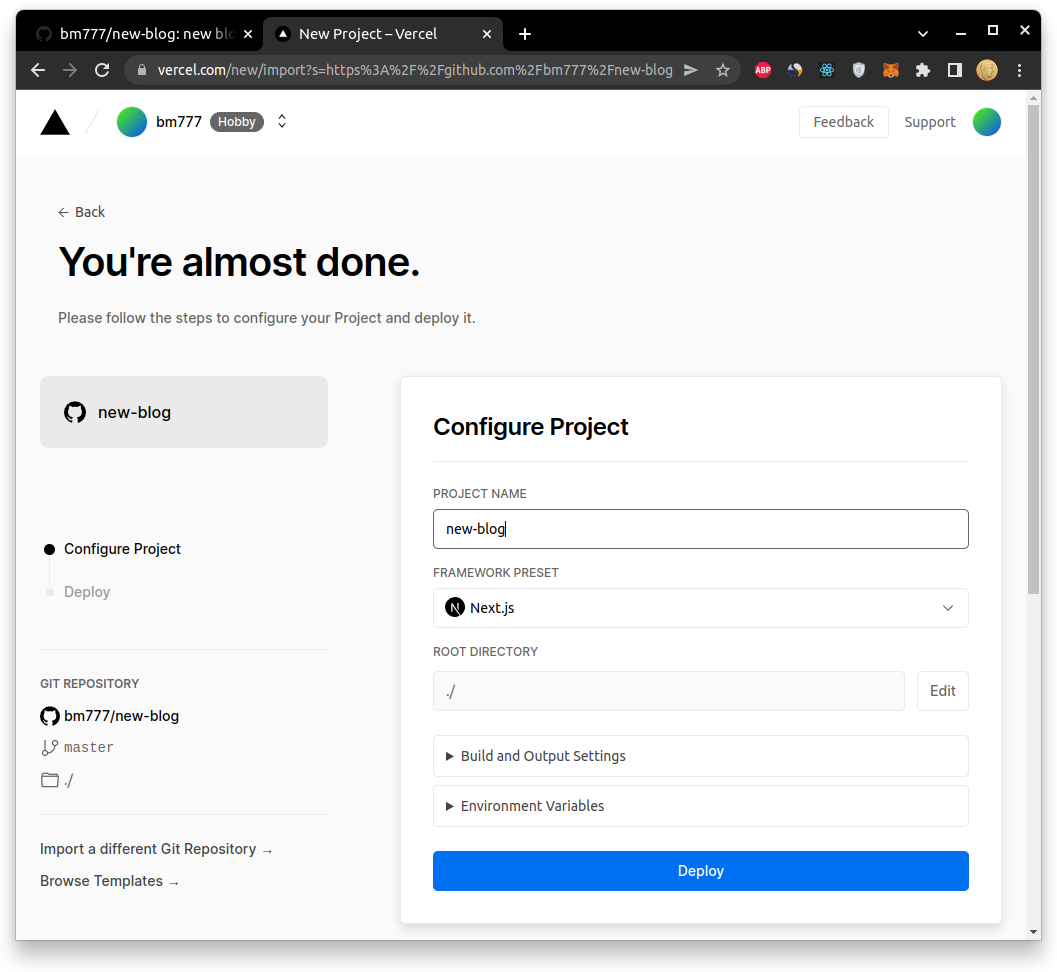
If you want to change the name of your page, just edit it and click on the blue button Deploy
Once the Build is finshed, you can find your project deployed.
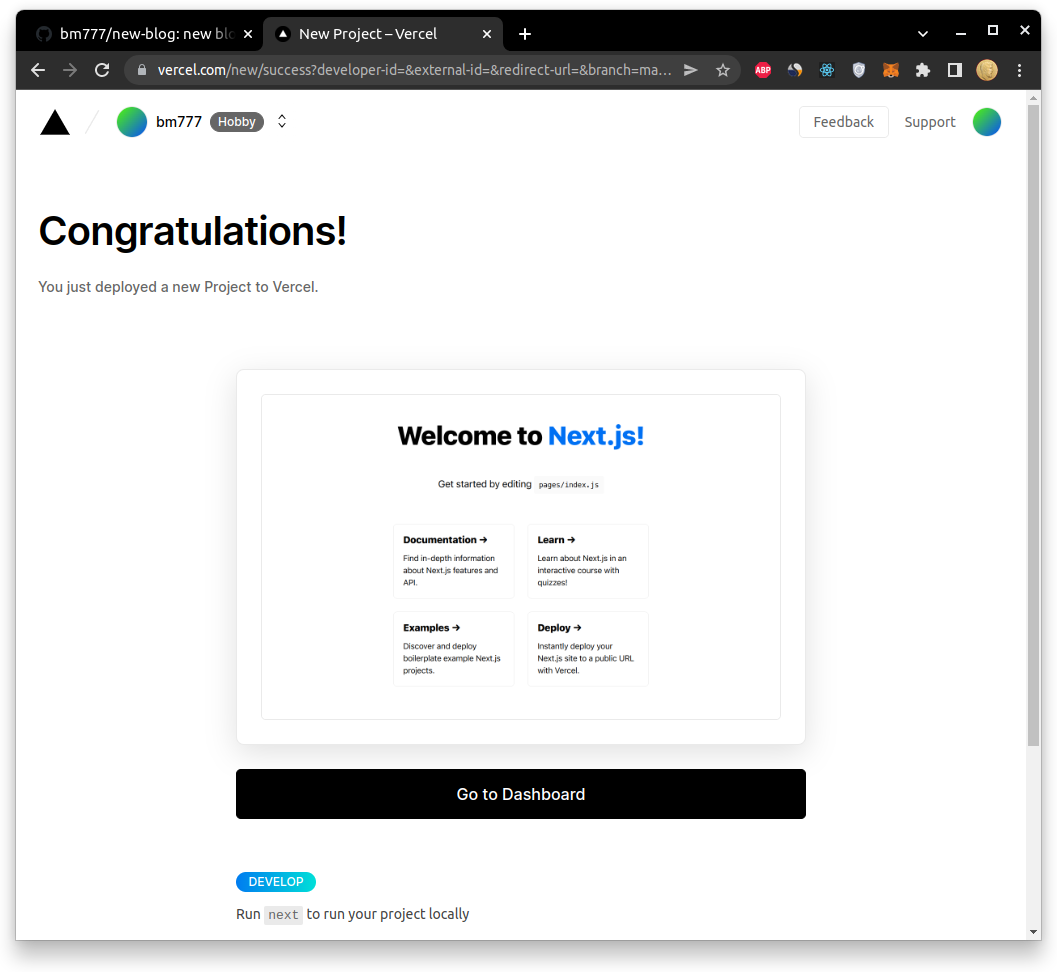
Enjoy it!!!