Add Tailwind CSS to a Next.js Application
We assume that, you already know how to create a Next.js app. I kindly recommend, if you don’t, to go back.
Tailwind CSS is a new way to design UI without touching any css code/file. It scan your JAvaScript (React.js) components, generates the corresponding css and then put them to a static CSS file. It doesn’t have delay at the runtime because of its flexibility.
Installation
We will do more than install it with npm. We will set up Tailwind CSS in our new created Next.js project. Let’s install tailwindcss and its dependencies: postcss and autoprefixer.
npm install tailwindcss postcss autoprefixer
Now, we should run the init command to generate tailwind.config.js and postcsss.config.js.
npx tailwindcss init -p
Configure the temmplate paths
We have to tell to tailwindcss where to find the .js components to generate the static css correspondant style. Let’s modifify tailwind.config.js.
module.exports = {
    content: [
        // Add these two following lines into your tailwind.config.js
        './pages/**/*.{js,jsx}',
        './components/**/*.{js,jsx}'
    ],
    theme: {
        extend: {},
    },
    plugins: []
}
Add the Tilwindcss directives
@tailwind directive is designed to link each Tailwindcss layers to our /styles/globals.css file. Make sure that you put it in the top of your file. Tailwind will apply firstly into your components and then apply the following class defined below the the tailwind directives.
@tailwind base;
@tailwind components;
@tailwind utilities;
Remember that globals.css file si applied to your whole Next.js app.
Usage
Let’s run the development server.
npm run dev
Let’s start using Tailwind’s classes into our simple app.
export default function Home() {
    return (
        <p className="text-purple-900 text-2xl text-center mt-52">
                Hello tryers :)
        </p>
    )
}
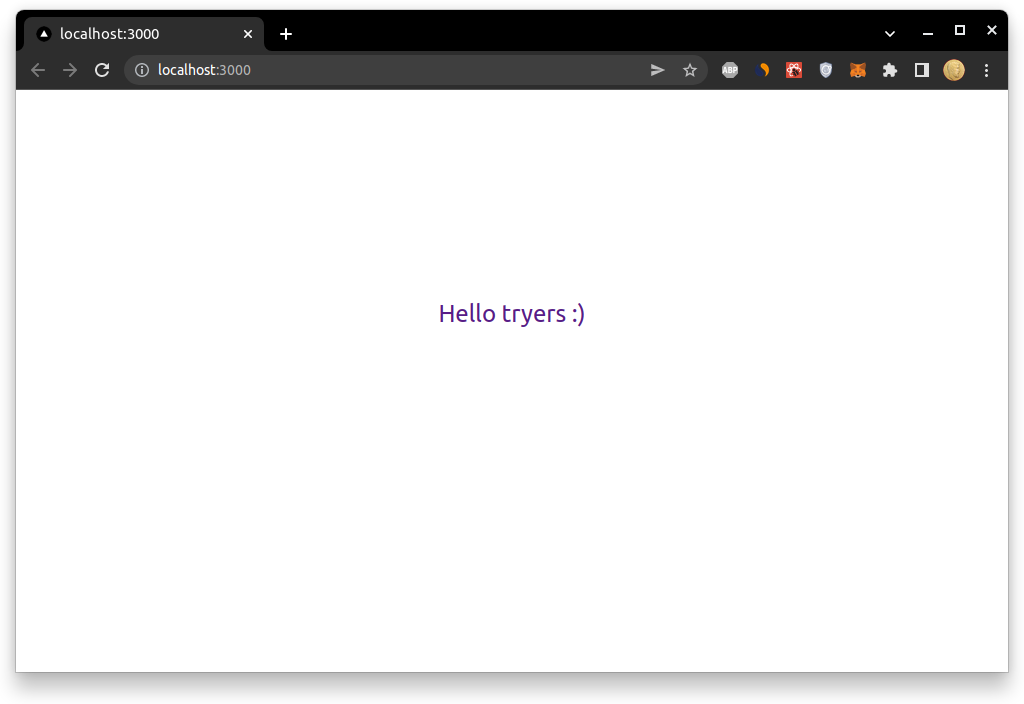
The result :)